Game guide · RCFUTURE11
Understand the basics of Minesweeper
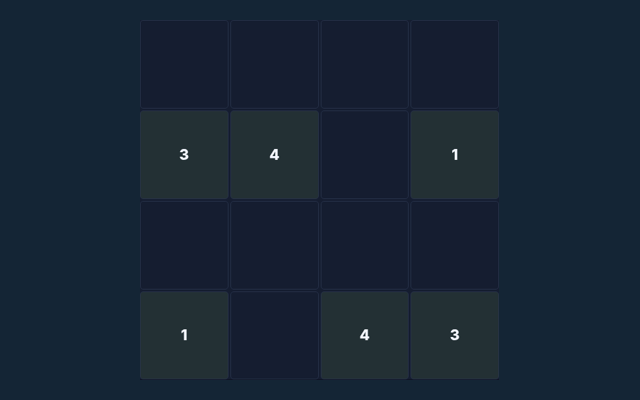
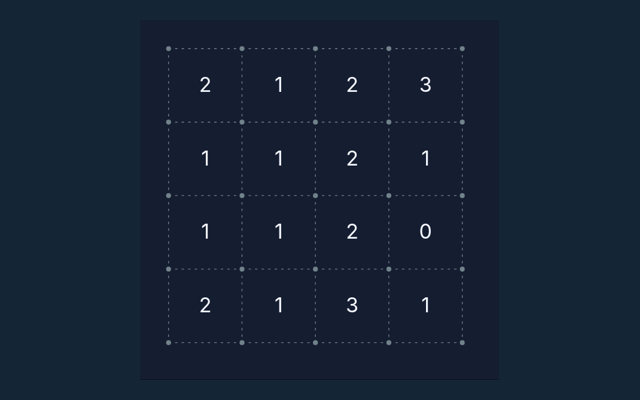
Open Minesweeper, check the instructions and begin a round. Open all 71 safe cells. Opening a mine ends the round. Flags help you mark suspected mines but do not replace opening safe cells. Use the example below to understand a decision. Make your first input carefully and watch the result. Keep the game area visible while you use its controls.
Practice beyond the first move
Take enough time to read a new position. If a game has a timer, learn its controls first rather than searching for them during the round. Keep the objective visible.
The goal to keep in mind
Open all 71 safe cells. Opening a mine ends the round. Flags help you mark suspected mines but do not replace opening safe cells. Use the instructions to see which actions move you towards it. Start with a deliberate move.
How a round unfolds
- Open a covered square to reveal it.
- A number counts mines in the surrounding eight positions.
- Right-click to flag on a computer, or enable Flag mode on a phone.
- Use safe deductions to open the remaining cells.
Input guidance
Click/tap to open. Right-click to flag, or use the Flag mode toggle for touch devices. On a smaller screen, keep the active part of the board within view. Make sure you are interacting with the game rather than the surrounding page.
See how the rules apply
A revealed 1 with only one covered neighbour means that neighbour contains a mine. Use the example as a guide rather than a substitute for reading your board. Check the stated objective.
A useful caution
A flag is your own note, not a confirmation from the game. Remove a mistaken flag before opening that square. Take a moment to reassess the position before continuing. Watch the feedback after an action. A message can explain whether the input was accepted or whether a rule needs attention.
More answers before you play
For this browser game, what is the goal of Minesweeper?
Open all 71 safe cells. Opening a mine ends the round. Flags help you mark suspected mines but do not replace opening safe cells.
While reading the Guide, how do I control Minesweeper?
Here is the relevant explanation: Click/tap to open. Right-click to flag, or use the Flag mode toggle for touch devices.
For my first round, what example helps explain Minesweeper?
Here is the relevant explanation: A revealed 1 means exactly one neighbouring square contains a mine. The clue counts diagonal neighbours as well as the squares directly beside it.
While reading the Guide, what should I watch out for in Minesweeper?
Here is the relevant explanation: A flag is your own note, not a confirmation from the game. Remove a mistaken flag before opening that square.
For a quick reminder, what format does Minesweeper offer?
The key detail is this: Play using the solo mode shown on this page. Read the controls before starting a new round.
For a quick reminder, which play mode does Minesweeper use?
The key detail is this: The mode on this page is Solo. Same-device play uses one screen; this game library does not provide internet matchmaking.
When I return, where should I start with Minesweeper?
Open a covered square to reveal it.
For a quick reminder, do I need an account or a payment for Minesweeper?
The key detail is this: No player account or payment is needed. Game scores are recreational results, not cash prizes.
For my first round, how can I find Minesweeper again?
Here is the relevant explanation: Use the Games list or save this game page in your browser bookmarks. The Guide is linked from the playing page.
For a quick reminder, how do I report an issue with Minesweeper?
The key detail is this: Use the contact form and include the game name, browser, device and the actions that led to the issue. Do not send passwords or payment details.